Support our educational content for free when you purchase through links on our site. Learn more
🤯 What is the Difference Between Raspberry Pi Models? (2026)

The single most critical difference between Raspberry Pi models isn’t just speed; it’s the fundamental split between full Linux computers (like the Pi 5 and Zero) and microcontrollers (like the Pico) that run without an operating system. When you ask what is the difference between Raspberry Pi models, you are really asking which tool fits your specific project: a powerful desktop replacement, a tiny IoT sensor, or an industrial controller?
We once watched a student try to run a web server on a Pico, only to realize it couldn’t even boot Linux, wasting three hours of debugging. That moment taught us that choosing the wrong model is the fastest way to kill a project before it starts.
Did you know the original Raspberry Pi sold over 1 million units in its first six months, yet the Pico series has since outsold it by a massive margin? The landscape has shifted from “one board to rule them all” to a specialized family where every model has a unique superpower.
Key Takeaways
- Architecture Matters: Flagship and Zero models run full Linux OS for complex tasks, while Pico models are microcontrollers for real-time hardware control.
- Performance Gaps: The Raspberry Pi 5 offers 2-3x CPU speed and NVMe booting, whereas the Zero 2 W is a budget-friendly quad-core option for lightweight tasks.
- Connectivity Limits: Only the Pi 4 and 5 feature native Gigabit Ethernet and USB 3.0; the Zero series relies on Wi-Fi and USB hubs.
- Form Factor: Choose Compute Modules for custom industrial designs and Pi 40 for plug-and-play desktops.
Ready to build?
- Flagship Power: Shop Raspberry Pi 5 | Shop Raspberry Pi 4
- Budget & Tiny: Shop Zero 2 W | Shop Pico W
- Industrial Grade: Shop Compute Module 4
Table of Contents
- ⚡️ Quick Tips and Facts
- 📜 From the Lab to Your Desk: A Brief History of the Raspberry Pi Family
- 🧠 The Brain Behind the Board: Understanding SoC Architecture and Performance Gaps
- 🏆 The Flagship Showdown: Comparing Raspberry Pi 4, 5, and the 40
- 🔌 The Zero Series: Tiny Titans for Budget-Conscious Makers
- 🔧 The Compute Module Series: Industrial Power in a Compact Form Factor
- 🎛️ Pico vs. Pi: When to Choose a Microcontroller Over a Single-Board Computer
- 🔋 Power Requirements and Thermal Management Across Different Models
- 📶 Connectivity Wars: USB, Ethernet, Wi-Fi, and Bluetooth Capabilities by Model
- 🖥️ Display and Camera Interfaces: MIPI, HDMI, and CSI Explained
- 💾 Storage Solutions: SD Cards, NVMe Boot, and USB Mass Storage
- 🛠️ Real-World Use Cases: Matching the Right Pi Model to Your Project
- 🚀 Future-Proofing Your Build: What to Expect from Upcoming Models
- 🏁 Conclusion
- 🔗 Recommended Links
- ❓ FAQ
- 📚 Reference Links
⚡️ Quick Tips and Facts
Before we dive into the deep end of the Raspberry Pi ocean, let’s grab a life preserver. Here are the absolute non-negotiables you need to know to avoid burning your wallet or your project:
- The “H” Suffix Matters: If you see a model name ending in “H” (like Zero H or Pico H), it means the GPIO pins are pre-soldered. If there’s no “H”, you’re going to need a soldering iron and a steady hand. Don’t say we didn’t warn you!
- Power is Not One-Size-Fits-All: The Raspberry Pi 5 demands a 5A/25W USB-C power supply. Using an old phone charger from your drawer? You’ll get throttled performance and random shutdowns. The Pi 4 needs 3A, while the Zero series can run on a measly 1A.
- Linux vs. Microcontroller: This is the biggest trap. The Flagship, Zero, and Compute Module series run full Linux (Raspberry Pi OS, Ubuntu, etc.). The Pico series runs MicroPython or C++ and does not run an operating system. You cannot install Windows or Linux on a Pico.
- RAM is Not Upgradable: Unlike your desktop PC, you cannot swap the RAM chip on a Raspberry Pi. If you bought a 1GB Pi 4, it will forever be a 1GB Pi 4. Choose wisely at checkout!
- The “Model A” vs. “Model B” Legacy: Historically, “A” meant fewer ports (no Ethernet) and less RAM, while “B” meant the full package. This naming convention has mostly faded in modern models, but the philosophy of “budget vs. feature-rich” remains.
For a deeper dive into the ecosystem, check out our comprehensive guide on Raspberry Pi.
📜 From the Lab to Your Desk: A Brief History of the Raspberry Pi Family

The story of the Raspberry Pi isn’t just about circuit boards; it’s about a rebellion against the rising cost of computing education. Back in the early 20s, Eben Upton and his team at the University of Cambridge noticed a worrying trend: students were arriving with zero programming experience because they couldn’t afford a computer to practice on.
They set out to build a $25 computer that could teach kids how to code. The result? The Raspberry Pi Model B, launched in February 2012. It sold out instantly.
The Evolution of the Flagship
The journey from the original BCM2835 chip (single-core, 256MB RAM) to the modern BCM2712 (quad-core, up to 16GB RAM) is a testament to rapid engineering iteration.
- 2012-2014: The Model B and A dominated, introducing the 40-pin GPIO header with the B+ and A+ models.
- 2015: The Pi 2 brought a quad-core processor, finally making the Pi usable for more than just blinking LEDs.
- 2016: The Pi 3 added built-in Wi-Fi and Bluetooth, killing the need for dongles.
- 2019: The Pi 4 was a game-changer, introducing USB 3.0, Gigabit Ethernet, and dual 4K HDMI output. It was no longer just a hobbyist board; it was a legitimate desktop replacement.
- 2023: The Pi 5 shattered performance ceilings with a PCIe interface, allowing for NVMe SSD booting and significantly faster I/O.
The Rise of the Zero and Compute Module
While the flagship models got the glory, the Zero series (launched 2015) proved that size doesn’t equal weakness. It became the darling of the IoT (Internet of Things) community. Meanwhile, the Compute Module series (starting 2014) quietly revolutionized industrial automation, allowing engineers to embed Pi power into custom devices like smart kiosks and digital signage.
And let’s not forget the Pico (2021), which broke the mold by introducing the RP2040 microcontroller, giving makers an Arduino competitor with the Pi ecosystem’s software support.
🧠 The Brain Behind the Board: Understanding SoC Architecture and Performance Gaps
When you hear “Raspberry Pi,” you’re really hearing about a System on a Chip (SoC). This is the magic box that contains the CPU, GPU, RAM, and memory controller all one tiny silicon die. Understanding the SoC is the key to understanding the difference between models.
The Broadcom Legacy vs. The RP2040 Revolution
Most Pi models (Flagship, Zero, Compute Module) rely on Broadcom chips. These are powerful, ARM-based processors designed to run a full operating system.
- The ARM Cortex-A Series: Found in Pi 3, 4, and 5. These are “Application” processors. They are complex, power-hungry, and designed to run Linux.
- The RP2040: Found in the Pico series. This is a “Microcontroller.” It’s simpler, runs at lower voltages, and executes code immediately without an OS.
Why the Pi 5 is a Beast
The jump from the Pi 4 to the Pi 5 isn’t just a clock speed bump. The BCM2712 in the Pi 5 uses a newer architecture (Cortex-A76) compared to the Cortex-A72 in the Pi 4.
- Pi 4: ~1.5 GHz, 4 cores.
- Pi 5: ~2.4 GHz, 4 cores.
- Real-world impact: The Pi 5 is roughly 2x to 3x faster in CPU tasks and significantly faster in graphics rendering.
The “Zero 2 W” Surprise
Don’t let the “Zero” name fool you. The Zero 2 W isn’t just a faster Zero; it’s a Pi 3 squeezed into a Zero-sized body. It uses the same BCM2710A1 chip as the Pi 3, offering a massive performance leap over the original Zero.
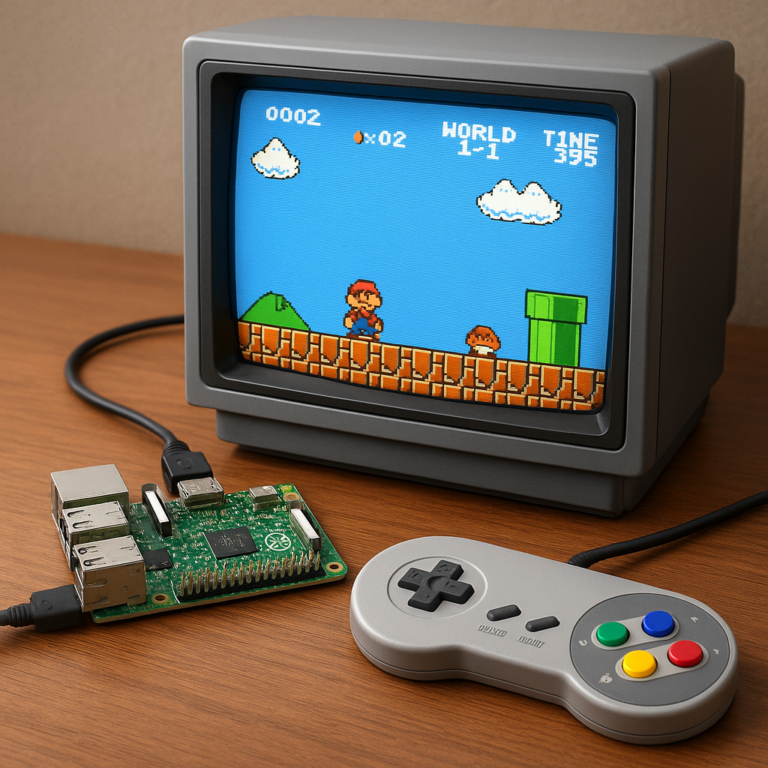
Pro Tip: If you are building a retro gaming console, the Pi 4 or Pi 5 is your best bet. The Zero 2 W can handle 8-bit and some 16-bit systems, but it will struggle with PlayStation 1 or N64 emulation.
🏆 The Flagship Showdown: Comparing Raspberry Pi 4, 5, and the 40
This is where the rubber meets the road. If you want a desktop PC, a media center, or a powerful server, you’re looking at the Flagship series. Let’s break down the titans.
Rating Table: Flagship Series Performance
| Feature | Raspberry Pi 4 Model B | Raspberry Pi 5 | Raspberry Pi 40 |
|---|---|---|---|
| Design & Build | 8/10 (Standard SBC) | 9/10 (Active cooling req.) | 10/10 (All-in-one) |
| CPU Performance | 7/10 | 10/10 | 8/10 |
| GPU Power | 7/10 | 9/10 | 8/10 |
| Connectivity | 8/10 | 10/10 (PCIe) | 8/10 |
| Value for Money | 9/10 | 8/10 | 9/10 |
| Overall Score | 8.2/10 | 9.2/10 | 8.8/10 |
Raspberry Pi 4 Model B: The Reliable Workhorse
For years, the Pi 4 was the undisputed king. It introduced USB 3.0 (finally, fast external drives!) and Gigabit Ethernet.
- Pros: Massive community support, stable, dual 4K HDMI, widely available.
- Cons: No PCIe slot, USB 2.0 ports are still present (though fewer), runs warm under load.
- Best For: Home servers, retro gaming (up to PS1), light desktop use.
Raspberry Pi 5: The New King
The Pi 5 is a different animal. It features a PCIe 2.0 x1 interface, which allows you to boot directly from an NVMe SSD. This eliminates the SD card bottleneck entirely.
- Pros: Blazing fast, PCIe expansion, dual 4Kp60 HDMI, improved power management.
- Cons: Requires a specific 5A power supply, runs hot (active cooling is mandatory for full performance), slightly higher price.
- Best For: Heavy desktop use, media centers with 4K content, network-attached storage (NAS), AI projects.
Raspberry Pi 40: The Desktop in a Keyboard
The Pi 40 is essentially a Pi 4 (with a slightly faster clock speed) built into a mechanical keyboard.
- Pros: Plug-and-play desktop experience, no messy cables, great for education.
- Cons: No upgrade path for the computer part, limited port access compared to the bare board.
- Best For: Students, home offices, kiosk displays.
👉 CHECK PRICE on:
- Raspberry Pi 4 Model B: Amazon | Walmart | Raspberry Pi Official
- Raspberry Pi 5: Amazon | Walmart | Raspberry Pi Official
- Raspberry Pi 40: Amazon | Raspberry Pi Official
🔌 The Zero Series: Tiny Titans for Budget-Conscious Makers
If the Flagship series is a muscle car, the Zero series is a pocket rocket. They are small, cheap, and surprisingly capable.
The Hierarchy of Zero
- Original Zero: The pioneer. No Wi-Fi, no Bluetooth. Just raw, tiny computing power.
- Zero W: Added Wi-Fi and Bluetooth. The most popular model for years.
- Zero WH: Same as Zero W, but with pre-soldered headers.
- Zero 2 W: The powerhouse. Quad-core CPU, 512MB RAM. It’s the only Zero that can truly handle modern web browsing.
Why Choose a Zero?
- Form Factor: It’s tiny. You can fit it inside a 3D-printed case, a drone, or a wearable.
- Power Consumption: It sips power. Perfect for battery-operated projects.
- Cost: You can get a Zero 2 W for a fraction of the price of a Pi 4.
The Catch
- No Ethernet: You are stuck with Wi-Fi. If you need a wired connection, you must use a USB-to-Ethernet adapter, which eats up your only USB port.
- Single HDMI: Only one micro-HDMI port.
- Thermal Throttling: Without a case or heatsink, they throttle quickly under load.
Anecdote: We once tried to run a full LAMP stack (Linux, Apache, MySQL, PHP) on an original Zero. It took 15 minutes to load a simple webpage. Switching to a Zero 2 W cut that time to under 2 seconds. The difference is night and day.
👉 CHECK PRICE on:
- Raspberry Pi Zero 2 W: Amazon | Adafruit | Raspberry Pi Official
- Raspberry Pi Zero W: Amazon | SparkFun
🔧 The Compute Module Series: Industrial Power in a Compact Form Factor
The Compute Module (CM) series is the “secret weapon” for engineers. It strips away all the ports (HDMI, USB, Ethernet) and leaves you with just the brain and the GPIO.
How It Works
You buy the Compute Module (which looks like a stick of RAM) and plug it into a Carrier Board. The carrier board provides the ports, power regulation, and connectivity you need.
The Evolution: CM1 to CM5
- CM1/CM3/CM3+: Older generations, using DDR2 SODIM connectors. Still widely used in legacy industrial projects.
- CM4: The game changer. It uses a high-density connector and offers eMMC storage options (faster and more reliable than SD cards). It also introduced optional Wi-Fi/Bluetooth.
- CM5: The latest iteration, matching the Pi 5’s performance. It uses a 40-pin connector, making it compatible with many existing carrier board designs.
Why Use a Compute Module?
- Customization: You design the board to fit your exact product needs.
- Reliability: eMMC storage is far more durable than SD cards for 24/7 operation.
- Form Factor: You can make the final product as small or as rugged as you need.
Real-World Example: A smart thermostat manufacturer uses the CM4 because they can design a tiny board that fits inside thermostat housing, with no extra space wasted on USB ports or HDMI connectors.
👉 CHECK PRICE on:
- Raspberry Pi Compute Module 4: Amazon | DigiKey | Raspberry Pi Official
- Raspberry Pi Compute Module 5: Amazon | Raspberry Pi Official
🎛️ Pico vs. Pi: When to Choose a Microcontroller Over a Single-Board Computer
This is the most common question we get at Why Pi™: “Should I buy a Pi or a Pico?”
The answer lies in the Operating System.
The Raspberry Pi (SBC)
- Runs: Full Linux (Raspberry Pi OS, Ubuntu, etc.).
- Use Case: When you need a file system, a web server, a database, or a graphical interface.
- Analogy: It’s like a laptop. You can install apps, browse the web, and run complex software.
The Raspberry Pi Pico (Microcontroller)
- Runs: Bare metal (C/C++ or MicroPython). No OS.
- Use Case: When you need to read a sensor, control a motor, or blink an LED with real-time precision.
- Analogy: It’s like a calculator. It does one thing very fast and doesn’t care about the internet.
The Pico Lineup
- Pico: The standard. Dual-core RP2040.
- Pico W: Adds Wi-Fi and Bluetooth.
- Pico 2: The new kid. Uses the RP2350 chip, offering double the memory and better security features.
Decision Matrix:
- Need to connect to the internet and host a website? Pi 4/5.
- Need to read a temperature sensor every 10 milliseconds? Pico.
- Need to read a sensor and send data to the cloud? Pico W (simpler) or Pi Zero 2 W (more complex).
👉 CHECK PRICE on:
- Raspberry Pi Pico W: Amazon | Adafruit | Raspberry Pi Official
- Raspberry Pi Pico 2: Amazon | Raspberry Pi Official
🔋 Power Requirements and Thermal Management Across Different Models
One of the biggest pitfalls for beginners is underestimating power and heat. A Pi that shuts down randomly is usually a power issue, not a software bug.
Power Supply Guidelines
| Model | Recommended Power Supply | Connector Type |
|---|---|---|
| Pi 5 | 5V / 5A (25W) | USB-C (PD capable) |
| Pi 4 | 5V / 3A (15W) | USB-C |
| Pi 3 B+ | 5V / 2.5A | Micro-USB |
| Pi 3 B | 5V / 2.5A | Micro-USB |
| Zero 2 W | 5V / 1A | Micro-USB |
| Pico | 5V / 1A (max) | Micro-USB or GPIO |
Warning: The Pi 5 is picky. If you use a standard 3A charger, it will limit performance to protect the board. You must use the official 27W power supply or a high-quality 5A PD charger.
Thermal Management
- Pi 5: Runs hot. Active cooling (fan) is required for sustained performance. The official Active Cooler is highly recommended.
- Pi 4: Runs warm. A passive heatsink is usually enough for light loads, but a fan is better for gaming or heavy computing.
- Zero Series: Tiny and efficient, but they have no heatsink surface area. A small adhesive heatsink is a must.
- Pico: Runs cool. Usually no cooling needed unless you are overclocking.
Did you know? The Pi 5 has a dedicated PMIC (Power Management IC) that monitors temperature and voltage in real-time, adjusting performance dynamically. This is why it’s so efficient compared to the Pi 4.
📶 Connectivity Wars: USB, Ethernet, Wi-Fi, and Bluetooth Capabilities by Model
Connectivity is where the models diverge most significantly.
USB Ports
- Pi 5: 2x USB 3.0 (5Gbps), 2x USB 2.0.
- Pi 4: 2x USB 3.0, 2x USB 2.0.
- Pi 3: 4x USB 2.0 (0.5Gbps).
- Zero 2 W: 1x Micro-USB (OTG). You need a hub for multiple devices.
- Pico: 1x Micro-USB.
Ethernet
- Gigabit (10 Mbps): Pi 5, Pi 4, Pi 3, Pi 2, Compute Module 4/5.
- Fast Ethernet (10 Mbps): Zero 2 W, Zero W, Original Zero.
- None: Pico series (requires USB dongle).
Wi-Fi and Bluetooth
- Wi-Fi 5 (802.1ac): Pi 5, Pi 4, Pi 3 B+, Zero 2 W, CM4/5. (Faster, dual-band 2.4/5GHz).
- Wi-Fi 4 (802.1n): Pi 3 B, Zero W, Pico W. (Slower, 2.4GHz only).
- Bluetooth 5.0+: Pi 5, Pi 4, Pi 3 B+, Zero 2 W, Pico W/2.
- Bluetooth 4.0/4.1: Pi 3 B, Zero W.
Pro Tip: If you are building a media center, the Pi 5 or Pi 4 is essential for 4K streaming. The Zero 2 W can do 1080p, but 4K will stutter.
🖥️ Display and Camera Interfaces: MIPI, HDMI, and CSI Explained
How do you get video and images into your Pi?
Video Output
- Dual 4Kp60 HDMI: Pi 5, Pi 4, CM4, CM5. Perfect for dual-monitor setups.
- Single 4Kp60 HDMI: Pi 3 B+, Zero 2 W.
- Composite Video (3.5mm jack): Pi 3, Zero, Zero W. Great for retro TVs.
- No Video Output: Pico (unless you use a specific display library).
Camera Interfaces
- CSI (Camera Serial Interface): All Pi models (except Pico) have a CSI port.
Pi 5: Has two CSI ports, allowing two cameras simultaneously.
Pi 4/3: One CSI port.
Zero: One CSI port (v1.3+). - MIPI DSI: For connecting official Raspberry Pi touchscreens.
Fun Fact: The Pi 5’s new camera stack (libcamera) is a complete rewrite of the software, offering better performance and support for modern sensors.
💾 Storage Solutions: SD Cards, NVMe Boot, and USB Mass Storage
Storage speed is the biggest bottleneck for Raspberry Pi performance.
SD Cards: The Old Standard
- Pros: Cheap, universal, easy to swap.
- Cons: Slow (even Class 10 cards), prone to corruption, limited write cycles.
- Recommendation: Use SanDisk Extreme or Samsung EVO cards. Avoid cheap, no-name brands.
USB Mass Storage (SSD/HDD)
- Pi 4/5: Can boot directly from a USB 3.0 SSD. This is 3x to 5x faster than an SD card.
- Pi 3: Can boot from USB, but requires a bootloader update.
- Zero: Requires a USB hub and adapter.
NVMe Boot (Pi 5 Only)
The Pi 5 is the first Pi to support NVMe booting via its PCIe interface.
- Speed: NVMe drives are 10x faster than USB SSDs.
- Requirement: You need a PCIe HAT (like the Pi M.2 HAT) and an NVMe SSD.
👉 CHECK PRICE on:
🛠️ Real-World Use Cases: Matching the Right Pi Model to Your Project
Let’s put this all together. Which Pi should you buy for your specific project?
1. The Home Server / NAS
- Best Choice: Raspberry Pi 5 (with NVMe) or Pi 4 (with USB SSD).
- Why: You need fast storage, Gigabit Ethernet, and enough RAM to handle file transfers. The Pi 5’s PCIe support makes it the ultimate NAS machine.
2. Retro Gaming Console
- Best Choice: Raspberry Pi 4 or Pi 5.
- Why: You need GPU power for emulation. The Pi 5 can handle up to GameCube/PS2 (with some tweaking), while the Pi 4 is perfect for PS1 and N64.
- Budget Option: Zero 2 W for 8-bit and 16-bit systems only.
3. Smart Home Hub / IoT Controller
- Best Choice: Raspberry Pi Zero 2 W or Pico W.
- Why: Low power, small size, and Wi-Fi. If you need real-time sensor reading, go Pico W. If you need a full Home Assistant installation, go Zero 2 W.
4. Industrial Automation
- Best Choice: Compute Module 4 or CM5.
- Why: Reliability, eMMC storage, and the ability to design a custom carrier board.
5. Educational Desktop
- Best Choice: Raspberry Pi 40.
- Why: It’s a complete computer in a keyboard. No assembly required.
🚀 Future-Proofing Your Build: What to Expect from Upcoming Models
The Raspberry Pi foundation is constantly innovating. Here’s what we can expect:
- More RAM: With the Pi 5, we now have 16GB options. Future models might push this even further for AI workloads.
- Better AI Acceleration: The Pi 5 has a dedicated AI accelerator (NPU) in the works? Maybe not in the next model, but the trend is clear.
- More Connectivity: Expect more USB 3.0 ports and perhaps even USB4 in future flagships.
- Sustainability: The foundation is focusing on using more recycled materials and reducing e-waste.
Question: Will the Pi 5 be the last “classic” Pi? Or will we see a Pi 6 with ARMv9 architecture? Only time will tell.
🏁 Conclusion
So, what is the difference between Raspberry Pi models? It’s not just about the price tag or the number of USB ports. It’s about matching the tool to the job.
- If you need raw power and expandability, the Raspberry Pi 5 is the undisputed champion.
- If you need reliability and value, the Raspberry Pi 4 remains a solid choice.
- If you need tiny size and low power, the Zero 2 W is your best friend.
- If you need industrial integration, the Compute Module series is the way to go.
- If you need real-time control, the Pico series is the answer.
We started this journey wondering which Pi to buy. Now, you have the knowledge to choose the perfect one. Whether you’re building a robot, a media center, or a smart home, there’s a Pi for you.
Final Recommendation: If you are a beginner, start with the Raspberry Pi 4 (4GB or 8GB). It offers the best balance of performance, price, and community support. If you are ready to push the limits, go for the Pi 5. And if you are just dipping your toes into electronics, grab a Pico W for $6.
Happy building!
🔗 Recommended Links
Ready to get started? Here are the essential products and resources to kickstart your journey.
👉 CHECK PRICE on:
- Raspberry Pi 5 (8GB): Amazon | Walmart | Raspberry Pi Official
- Raspberry Pi 4 Model B (4GB): Amazon | Adafruit | Raspberry Pi Official
- Raspberry Pi Zero 2 W: Amazon | SparkFun | Raspberry Pi Official
- Raspberry Pi Pico W: Amazon | DigiKey | Raspberry Pi Official
- Official Raspberry Pi 5 Power Supply: Amazon | Raspberry Pi Official
- Official Raspberry Pi Active Cooler: Amazon | Raspberry Pi Official
Books to Learn More:
- Raspberry Pi User Guide by Eben Upton and Gareth Halfacree
- Raspberry Pi Cookbook by Simon Monk
❓ FAQ

Which Raspberry Pi model is best for beginners?
The Raspberry Pi 4 Model B (4GB) is the sweet spot for beginners. It has enough power to run a desktop OS, stream 4K video, and handle most projects without breaking the bank. The community support is massive, and finding tutorials is easy. If you are on a tight budget, the Zero 2 W is a great entry point for simpler projects.
Read more about “🚀 8 Raspberry Pi Projects That Will Blow Your Mind (2026)”
What are the key differences between Raspberry Pi 4 and Raspberry Pi 5?
The Pi 5 is significantly faster (2-3x CPU performance), has a PCIe interface for NVMe booting, supports dual 4Kp60 HDMI, and has USB 3.0 on all ports (Pi 4 has two USB 2.0). However, the Pi 5 requires a 5A power supply and active cooling, whereas the Pi 4 is more forgiving with power and heat.
How much RAM do I need for my Raspberry Pi project?
- Light tasks (IoT, simple scripts): 1GB or 2GB is enough.
- Desktop use, web browsing, media center: 4GB is the minimum recommended.
- Heavy multitasking, virtualization, AI: 8GB or 16GB is ideal.
- Note: You cannot upgrade RAM later, so choose based on your future needs.
Read more about “🍓 Why Are Raspberry Pis So Rare? The 10 Truths (2026)”
Is the Raspberry Pi Zero W still worth buying in 2024?
The Zero W is still useful for very simple, low-power projects where size is critical. However, for most new projects, the Zero 2 W is a better choice. The Zero 2 W has a quad-core processor that is 4x faster than the original Zero W, making it capable of much more complex tasks.
Read more about “🚨 Raspberry Pi Price Gouging: The 2026 Truth (7 Fixes)”
What is the price difference between Raspberry Pi models?
Prices vary by retailer and availability, but generally:
- Pico: $4 – $7
- Zero 2 W: $15 – $20
- Pi 4 (4GB): $5 – $75
- Pi 5 (4GB): $60 – $80
- Pi 5 (8GB/16GB): $80 – $10+
- Compute Module 4: $25 – $75 (depending on RAM/storage)
Read more about “🚀 Raspberry Pi 4 8GB: The Ultimate 2026 Powerhouse Review”
Can I upgrade the RAM on an existing Raspberry Pi?
No. The RAM is soldered directly to the SoC. You cannot upgrade it. If you need more RAM, you must buy a new board with higher capacity.
Read more about “🛠️ 7 Deadly Sins of Raspberry Pi Troubleshooting (2026)”
Which Raspberry Pi model has the best performance for gaming?
The Raspberry Pi 5 is the best for gaming, capable of emulating up to GameCube and PS2 (with some tweaking). The Pi 4 is excellent for PS1, N64, and Dreamcast. The Zero 2 W is limited to 8-bit and 16-bit systems.
Read more about “🚀 The Ultimate Raspberry Pi Beginner Guide: 12 Models & Projects (2026)”
📚 Reference Links